
Microsoft Authenticator Set-Up
Lake Tahoe Community College, part of the California Community College system, utilizes multi-factor authentication because it stops nearly all automated and credential-based hacks, making accounts 99% less likely to be compromised even if a password is stolen.
Microsoft is officially retiring native, Microsoft-provided SMS and voice authentication. This change is designed to shift organizations towards more secure, phishing-resistant authentication methods like passkeys. Starting February 1st, 2027, Microsoft will no longer support SMS and voice authentication. LTCC highly recommends utilizing the Microsoft Authenticator mobile app by following the directions below. If you choose to set up or continue using SMS or voice MFA authentication, you will need to change or reset your MFA on February 1st, 2027.
Multifactor Authentication Steps
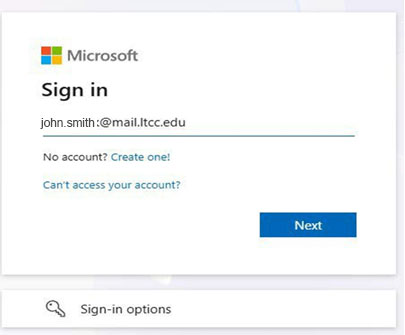
- On your computer, visit https://portal.ltcc.edu or https://portal.office.com/ (opens in a new tab)
- Sign in using your LTCC email ending in “@mail.ltcc.edu” and your password
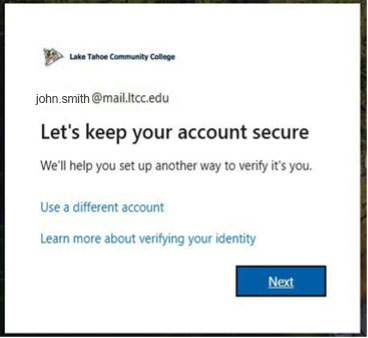
- Once completed it will redirect you to a page prompting "Let’s keep your account secure"
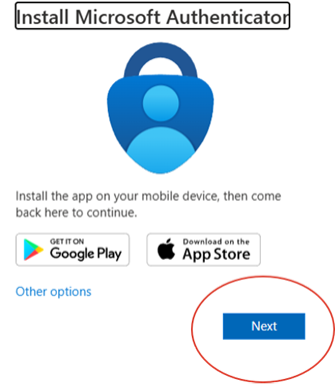
- When prompted, download the Microsoft Authenticator App on your smartphone from Apple App Store for iOS devices or Google Play Store for Android devices
- On your computer select next to continue
- Open the Microsoft Authenticator app on smart device
- Allow notifications if prompted
- Tap the + Icon or select Add account
- Select Work or School Account
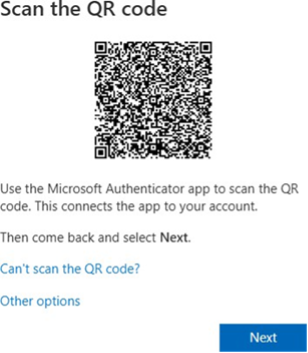
- Select Scan a QR code. Allow camera access if prompted
- On your computer, select Next after scanning the QR code
- Open the test notification in Microsoft Authenticator on your phone
- Follow the on-screen instructions to approve the request
- After the verification succeeds, your account is all set up with MFA.
If you are unable to use the Microsoft Authenticator app or need assistance with MFA setup, please contact the LTCC IT Department directly by calling 530-542-8807 or 530-541-4660, Ext 343
Updated October 27th, 2026